Tools
The next tab includes some classic and important GIS tools such as:
- Distance measurement
An important function is the measurement of a distance. It gets activated by clicking on the ruler’s symbol. The user can click on the map on the point of interest and start creating a line. The measurement stops by clicking again on the last point. A list with the measurements is created where the user has the option to zoom in the area  or delete the measurement
  .
.
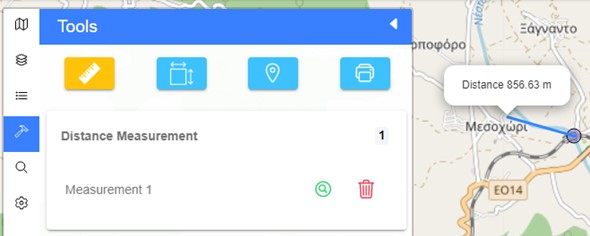
Figure 14: The measurement of a distance tool
- Measurement of an area
The user can click on the second symbol to activate the measurement function. Then, by clicking on the map, they can measure any area by creating a polygon. The completion of the measurement occurs by clicking on the first point of the polygon. The list of measurements appears at the bottom of this menu, with again the options to zoom in the area or delete the measurement.
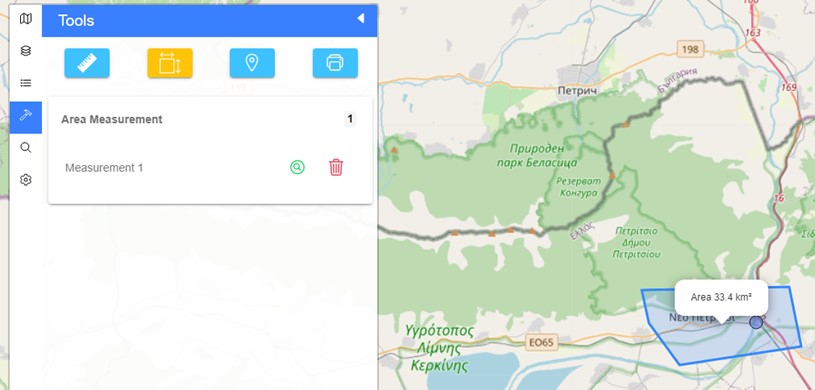
Figure 75: Area measurement tool
- Go to a specific point
With this function the user has the ability to go to a specific point by their coordinates by clicking the  button. The available coordinate systems are among geographic coordinates (GPS), Google coordinates, EGSA ’87 and WGS’84, depending on preferences and data availability. It is also possible to go/create a point on the map and display their coordinates by clicking on the
  icon. Finally, the list of measurements appears at the bottom of this menu, with the options to zoom to a point
  or delete it (Figure 18).
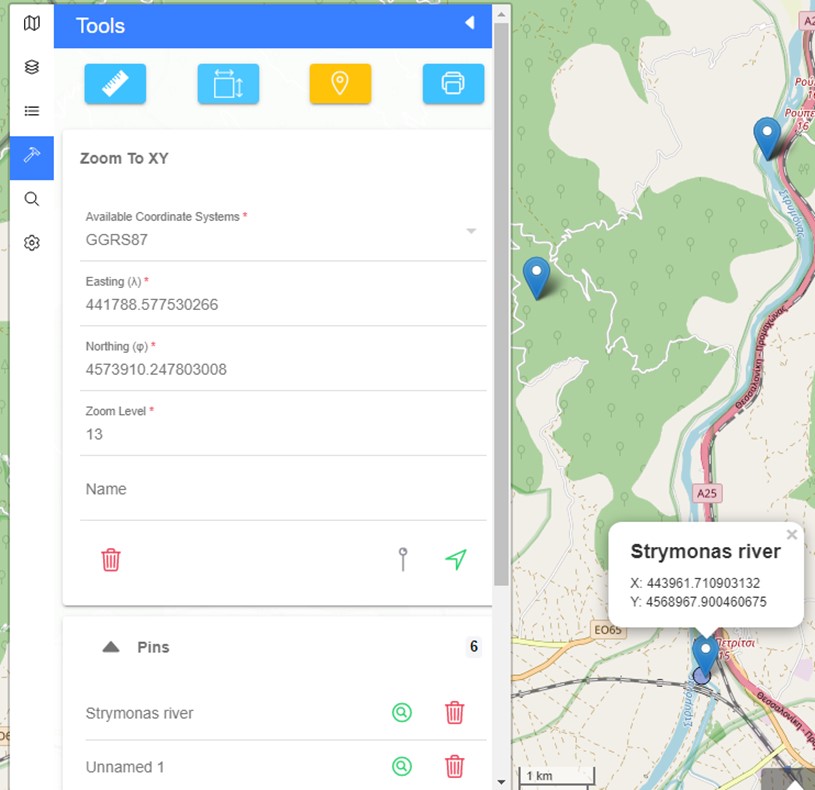
Figure 16: Go to a specific point, using the coordinates, tool
- Printing the map
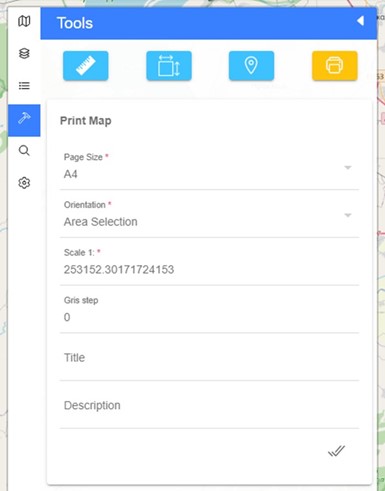
In Evrymap the user has the ability to print the contents of the map by defining the following settings (Figure 17):
- Page size (from A0 – A5 or letter)
- Orientation (portrait, landscape, area selection)
- Scale
- Gris step
- Title
- Description