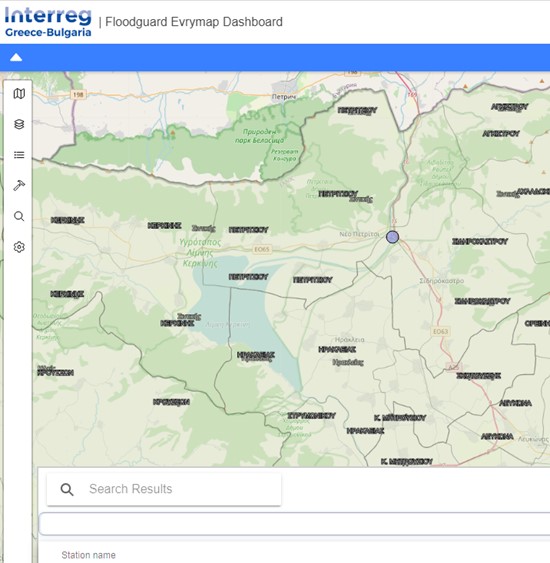
Entering the platform
The link to the Web- GIS Platform, http://floodguard.m-t.gov.gr/evrymap/map, enters the user to the Map Portal, which is called Evrymap. All the water monitoring stations, where smart sensors have been installed to collect telemetry data in the cross-border river basins of Evros, Nestos and Strymonas, are displayed on the map in full extent (Figure 1).
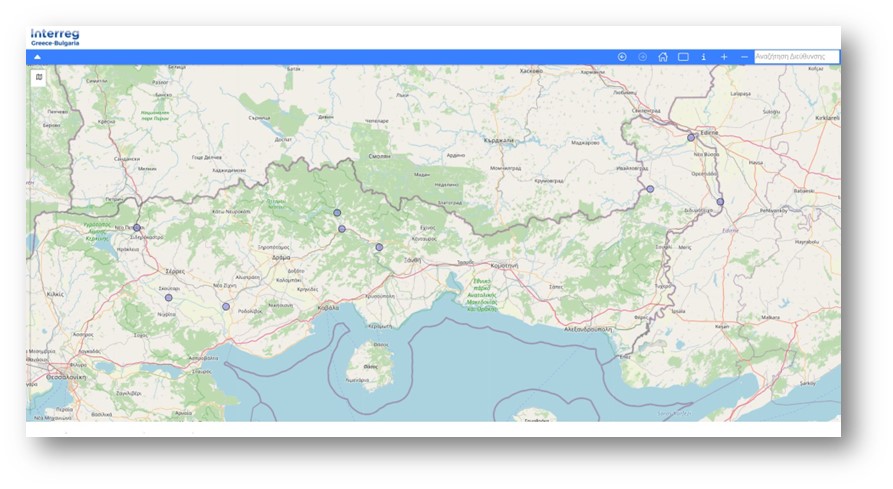
Figure 1: Home Page Floodguard Web-GIS Platform
On the right hand-side, at the bottom of the page, the coordinates are displayed (Figure2). While the mouse sensor is moving around the coordinates are refreshed.
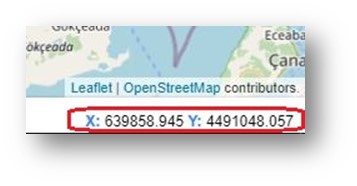
Figure 2: Display of Coordinates
The Basic functionalities of the integrated web water monitoring system are displayed below on Figure 3:

Figure 3: Basic Functionalities
- Navigation tool
The navigation on the map can be done by using the mouse buttons. By holding on the left click of the mouse the user can navigate on the map while they can zoom in and zoom out by using the scroll wheel. The  ,
,  buttons can be used for the same purpose as well. The buttons of previous and next extent
  ,
,  are also available, after zooming in to a specific extent of the area. The home button
  takes you back to the default zoom extent.
- Search address
The user can search for an address, a location defining the name of the town/city/area etc. by using the address bar that exist on the top right side. A list of the available options is coming up on the search table, where the user can select and zoom into the area of interest (Figure 4).
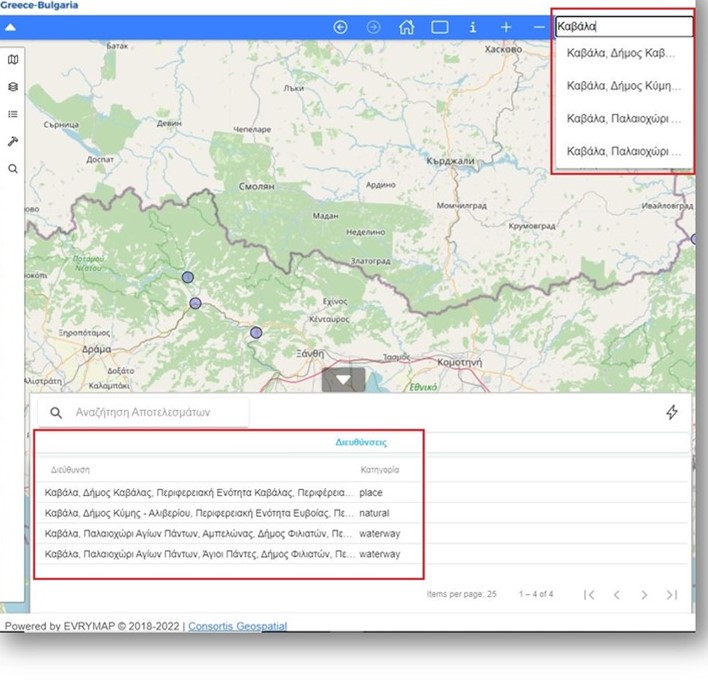
Figure 4: The search address bar
- Looking for objects on the map
The identification tool  is available for extracting information of objects on the map. Additionally, the search by polygon
  tool allows the user to create a polygon around a specific area and select all the objects that lay within (Figure 5). Both options return the records of the selected objects on the results table. The information is available to download in a .csv or .shp format.
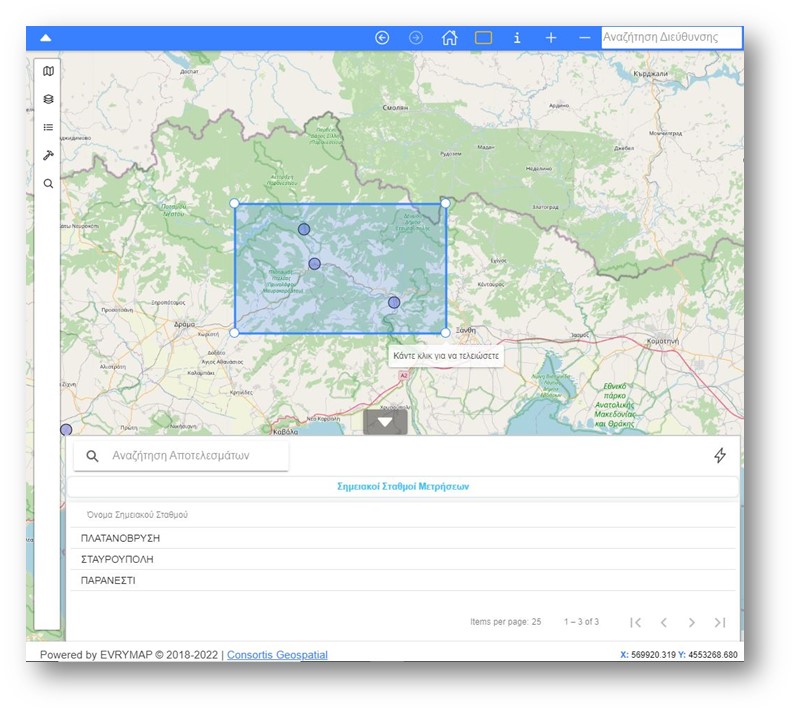
Figure 5. Search by polygon option
There are a few extra and shortcut buttons demonstrated on figure 6 below:
On the lefthand side, the filter button gives the user the possibility of filtering the search results for finding the objects of interest in a quicker way. On the righthand side, the user can download the results in a .csv and .shp formats.

The main menu with the most important functions of Evrymap web application exist on the left side of the main page (Figure 7). These functions are explained in detail on the following chapter section.